 하나씩 점을 찍어 나가며
저번 Quick 리뷰 글에 이어 계속해서 작성한다.
이번 글은 MLflow 에서 제공하는 Automatic Logging 기능 예제들을 살펴본다.
사전 준비
다음이 사전에 준비 되어 있어야 한다.
# 파이썬 버전 확인
$ python --version
Python 3.8.7

# mlflow 설치 & 버전 확인
$ pip install mlflow
$ mlflow --version
mlflow, version 1.16.0

# 예제 파일을 위한 mlflow repo clone
$ git clone https://github.com/mlflow/mlflow.git
$ cd mlflow/examples
예제 살펴보기
linear_regression.py
examples 내에 있는 많은 예제 중, skelarn_autolog 를 사용해보자.
먼저 sklearn 을 설치해준다.
# sklearn 설치 & 버전 확인
$ pip install sklearn
$ python -c "import sklearn; print(sklearn.__version__)"
0.24.2
skelarn_autolog/linear_regression.py 를 보면 다음처럼 생겼다.
# skelarn_autolog/linear_regression.py

from pprint import pprint

import numpy as np
from sklearn.linear_model import LinearRegression

import mlflow
from utils import fetch_logged_data


def main():
    # enable autologging
    mlflow.sklearn.autolog()

    # prepare training data
    X = np.array([[1, 1], [1, 2], [2, 2], [2, 3]])
    y = np.dot(X, np.array([1, 2])) + 3

    # train a model
    model = LinearRegression()
    with mlflow.start_run() as run:
        model.fit(X, y)
        print("Logged data and model in run {}".format(run.info.run_id))

    # show logged data
    for key, data in fetch_logged_data(run.info.run_id).items():
        print("\n---------- logged {} - ---------".format(key))
        pprint(data)


if __name__ == "__main__":
    main()
소스코드가 아주 간결하고 잘 설명되어 있다. 내용은 Linear Regression을 사용하는 간단한 머신러닝 코드다.
여기서는 2가지 코드가 눈에 띈다.
mlflow.sklearn.autolog()- Automatic Logging 기능을 사용하는 설정이다.
- 코드 앞부분에 들어가야 한다.
with mlflow.start_run() as run:- MLflow 의 실행(run) 의 시작을 알리는 컨텍스트 매니저 구문이다.
run에는 실행과 관련된 내용이 들어간다.
이제 다음 명령어로 실행해보자.
$ python sklearn_autolog/linear_regression.py
실행하고 나면 위와같은 출력이 나온다.warning 은 일단 무시하면 될듯하고.. 로그를 좀 살펴보면, run_id 가 8f93587bcd384c198daee5aaef6f5c4b 로 생성되었고, 다음 사항들이 자동으로 기록한 것을 알 수 있다.
params- 모델 생성(위에서는
LinearRegression)에 사용하는params를 기록한다. - 부연 설명하면...
copy_X,fit_intercept등의 파라미터는LinearRegression의__init__파라미터다.
- 모델 생성(위에서는
metrics- 모델 훈련 중에 평가하는
metrics를 기록한다. - 위의 경우,
mae,mse,r2_score,rmse,score(이건 뭔지 모르겠다.) 를 모두 기록해주었다.
- 모델 훈련 중에 평가하는
tags- 이 실행에 관련된
tag를 기록한다. - 기본적으로 모델의 패키지와 클래스 이름을 기록한다.
- 이 실행에 관련된
artifacts- 실행에 대한 메타 정보와 모델 파일을 기록한다.
실제로 잘 생성되었는지 mlruns/ 에서 확인해보자.
$ tree mlruns/
8f93587bcd384c198daee5aaef6f5c4b 디렉토리에 각종 내용들이 로깅된 파일들이 있는 것을 볼 수 있다.
실제 어떤 값들이 들어가있는지 쉽게 보기위해 웹서버로 접속해서 봐보자.
$ mlflow ui
[2021-05-01 14:36:15 +0900] [87757] [INFO] Starting gunicorn 20.1.0
[2021-05-01 14:36:15 +0900] [87757] [INFO] Listening at: http://127.0.0.1:5000 (87757)
[2021-05-01 14:36:15 +0900] [87757] [INFO] Using worker: sync
[2021-05-01 14:36:15 +0900] [87759] [INFO] Booting worker with pid: 87759
params , metrics, tags 등을 좀 더 자세히 확인해보기 위해 sklearn 모델을 클릭하여 실행 상세 페이지에 들어가보자.
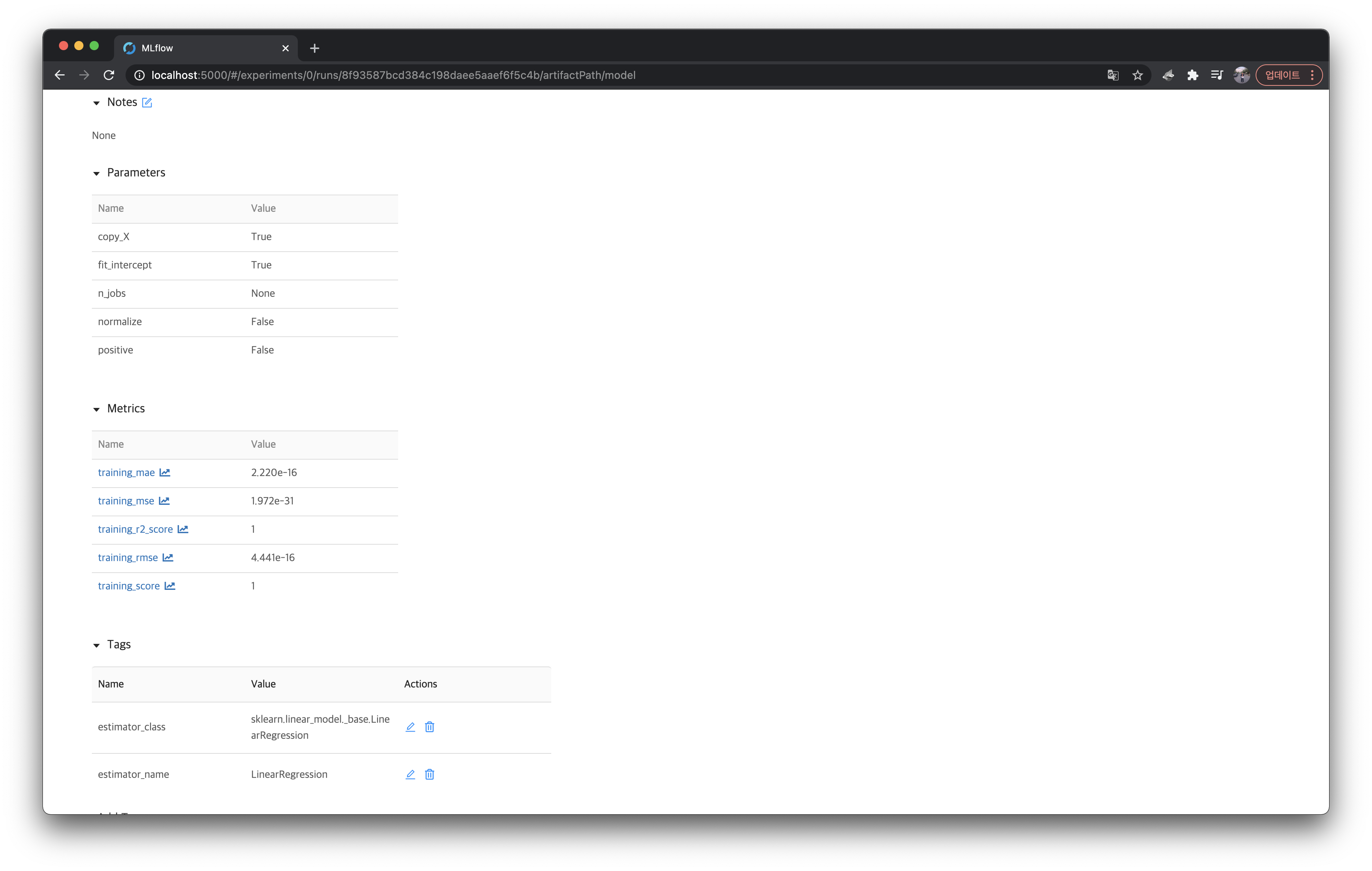
위에서 출력한 내용들이 모두 잘 들어가있는 것을 볼 수 있다.
pipeline.py
이번엔 skelarn_autolog/pipeline.py 예제를 살펴보자.
이 파일은 다음처럼 생겼다.
from pprint import pprint

import numpy as np
from sklearn.linear_model import LinearRegression
from sklearn.preprocessing import StandardScaler
from sklearn.pipeline import Pipeline

import mlflow
from utils import fetch_logged_data


def main():
    # enable autologging
    mlflow.sklearn.autolog()

    # prepare training data
    X = np.array([[1, 1], [1, 2], [2, 2], [2, 3]])
    y = np.dot(X, np.array([1, 2])) + 3

    # train a model
    pipe = Pipeline([("scaler", StandardScaler()), ("lr", LinearRegression())])
    with mlflow.start_run() as run:
        pipe.fit(X, y)
        print("Logged data and model in run: {}".format(run.info.run_id))

    # show logged data
    for key, data in fetch_logged_data(run.info.run_id).items():
        print("\n---------- logged {} ----------".format(key))
        pprint(data)


if __name__ == "__main__":
    main()
sklearn.pipeline.Pipeline 을 사용하는 간단한 머신러닝 코드다.
바로 실행해보자.
$ python sklearn_autolog/pipeline.py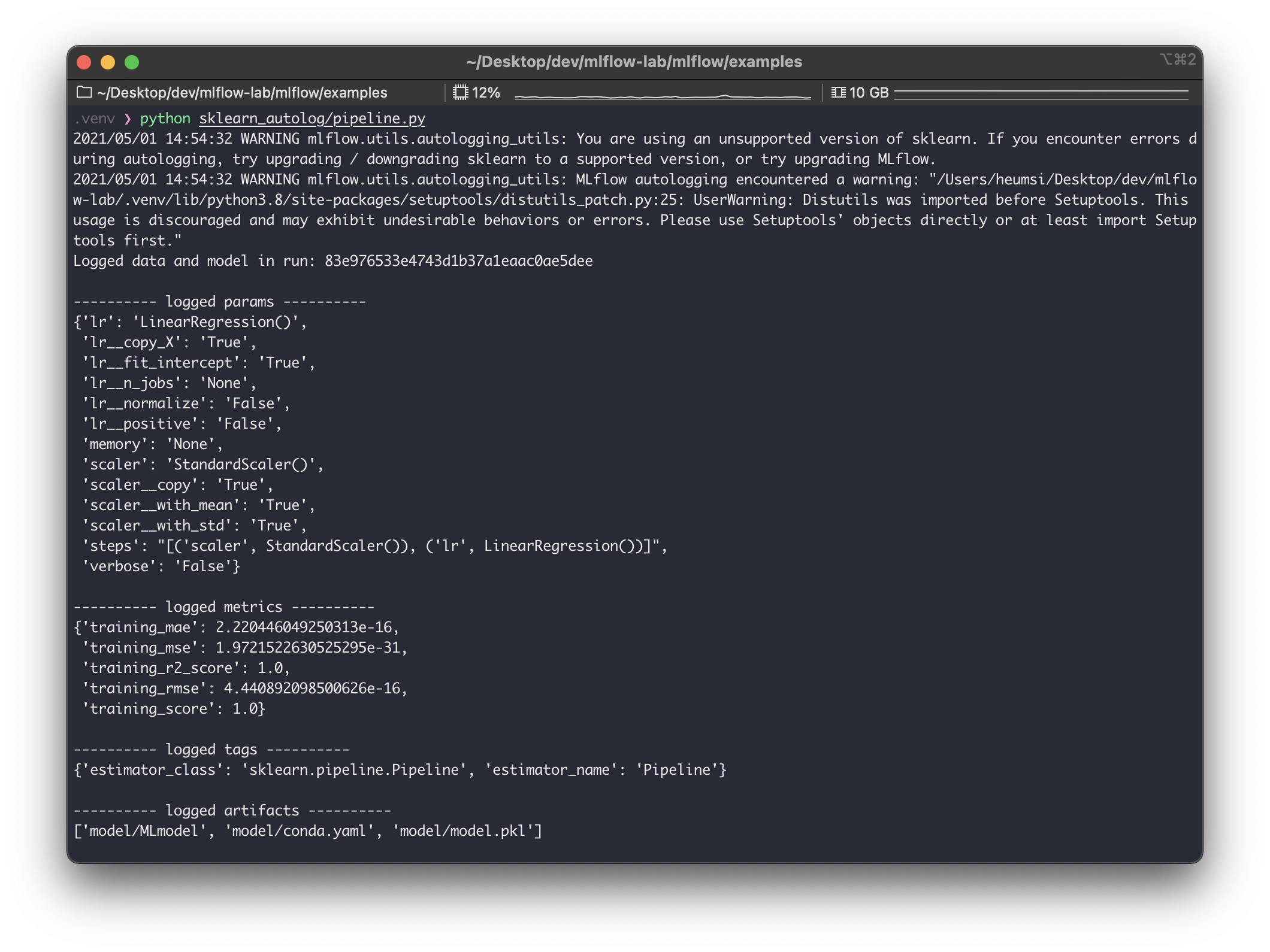
logged_params 를 보면 Pipeline 에 들어가는 모든 파라미터를 기록하는 것을 볼 수 있다.
기록된 값 역시 mlruns/ 에 저장된다.
grid_search_cv.py
마지막으로, skelarn_autolog/grid_search_cv.py 예제를 살펴보자.
다음처럼 생겼다.
from pprint import pprint

import pandas as pd
from sklearn import svm, datasets
from sklearn.model_selection import GridSearchCV

import mlflow
from utils import fetch_logged_data


def main():
    mlflow.sklearn.autolog()

    iris = datasets.load_iris()
    parameters = {"kernel": ("linear", "rbf"), "C": [1, 10]}
    svc = svm.SVC()
    clf = GridSearchCV(svc, parameters)

    with mlflow.start_run() as run:
        clf.fit(iris.data, iris.target)

    # show data logged in the parent run
    print("========== parent run ==========")
    for key, data in fetch_logged_data(run.info.run_id).items():
        print("\n---------- logged {} ----------".format(key))
        pprint(data)

    # show data logged in the child runs
    filter_child_runs = "tags.mlflow.parentRunId = '{}'".format(run.info.run_id)
    runs = mlflow.search_runs(filter_string=filter_child_runs)
    param_cols = ["params.{}".format(p) for p in parameters.keys()]
    metric_cols = ["metrics.mean_test_score"]

    print("\n========== child runs ==========\n")
    pd.set_option("display.max_columns", None)  # prevent truncating columns
    print(runs[["run_id", *param_cols, *metric_cols]])


if __name__ == "__main__":
    main()
iris 데이터셋을 사용하고, svm 모델을 사용하는데, 이 때 GridSearchCV 를 사용하여 최적의 모델 파라미터를 찾는 머신러닝 코드다.# show data logged in the parent run 아래 부분은 뭔가 양이 많은데, 그냥 로깅된 내용을 출력해주는 부분이므로, 여기서는 주의 깊게 봐지 않아도 된다.
아무튼 이 코드도 실행해보자.
$ python sklearn_autolog/grid_search_cv.py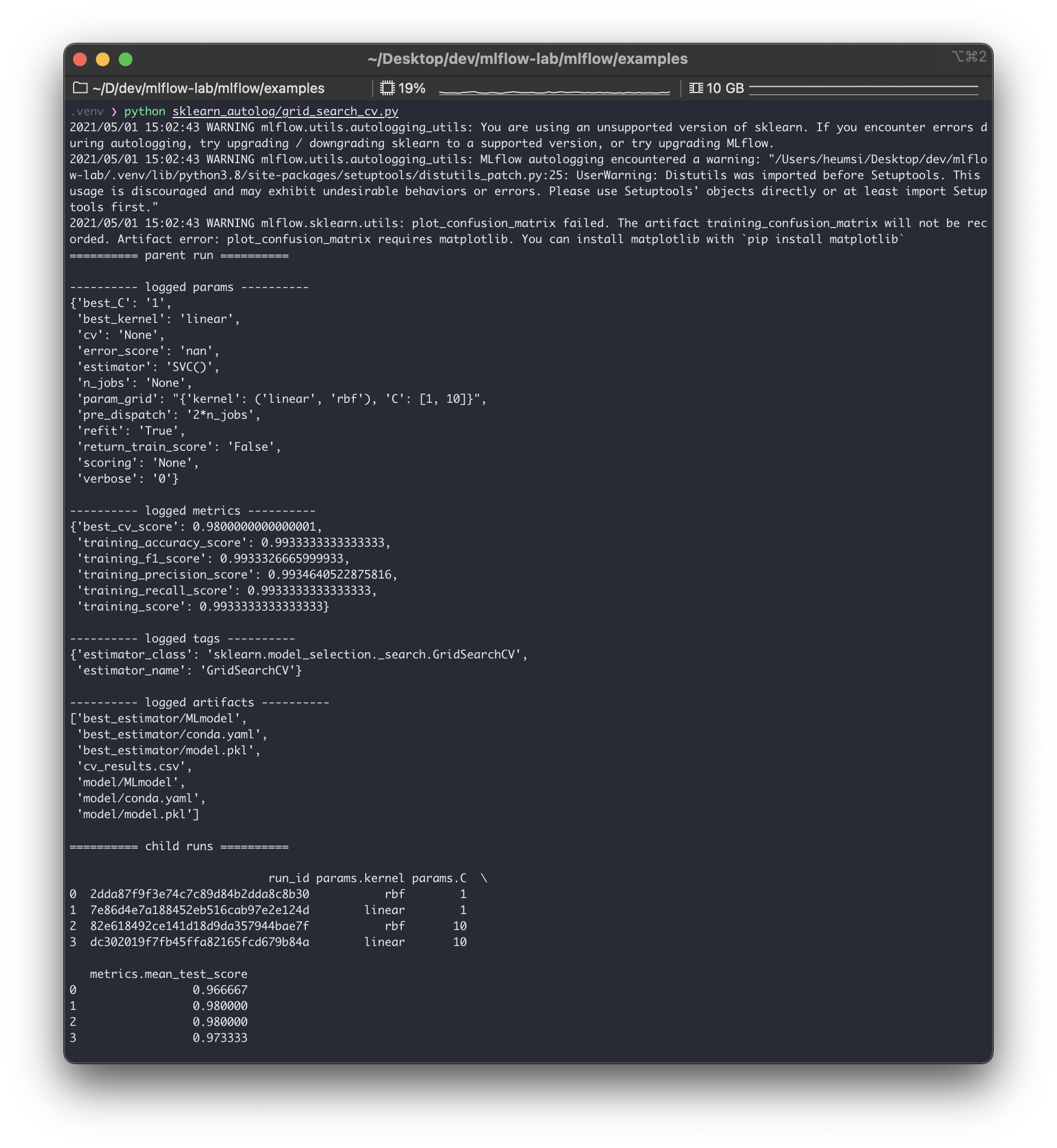
출력된 내용을 보면 크게 parent run 과 child runs 으로 구성해볼 수 있다.parent run 에서는 전체 파이프라인에 들어간 파라미터 값들을 기록하고, 또 이 GridSearch 를 통해 찾은 최적의 파라미터 값을 기록한다. (best_C, best_kernel ).child runs 에서는 GridSearch 진행할 때 각각 파라미터 경우의 수대로 run 들을 실행하고 기록한 모습을 볼 수 있다. 이 때 child runs 들도 각각 하나의 run 이 되므로 run_id 를 가지게 된다. 즉 GridSearch 에서 파라미터 조합의 경우의 수가 많아지면, 그만큼의 실행(run) 이 생기게 된다.
실제 mlruns 를 확인해보면 이 child run 들이 생긴 것을 볼 수 있다.
(다만 parent run 과 별다른 디렉토리 구분은 없다. 즉 누가 child run 인지 디렉토리 구조로는 파악이 잘 안된다.)
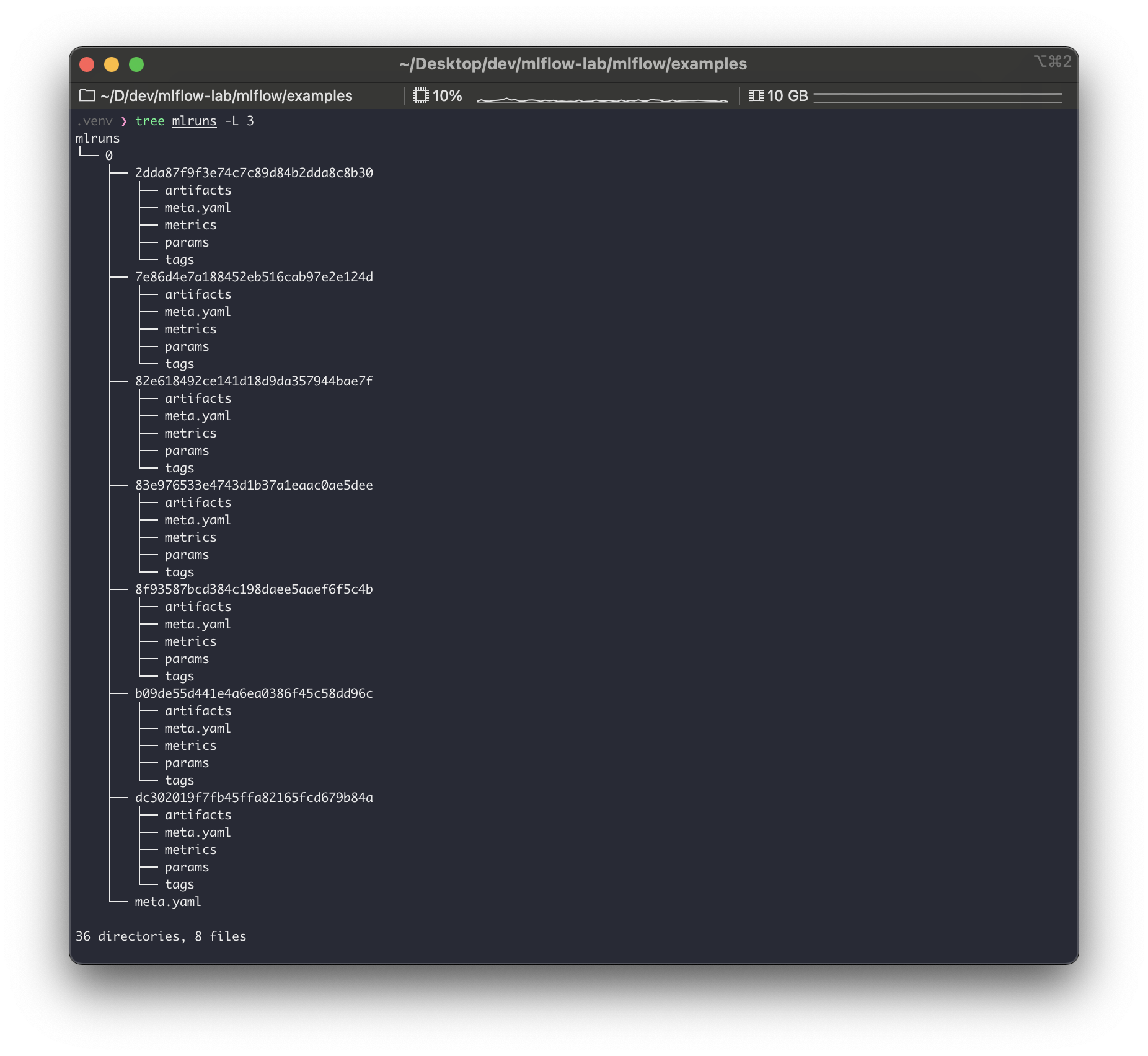
그렇다면 웹서버에서는 어떻게 보여줄까?
웹서버에서도 child run 들을 parent run 들과 구분 없이 보여줄까?
이를 확인하기 위해 웹서버로 접속해서 확인해보자.

재밌게도 웹서버에서는 parent run 만 보인다.grid_search_cv.py 가 있는 행에 + 버튼을 눌러보면 아래와 같이 child runs 가 나온다.
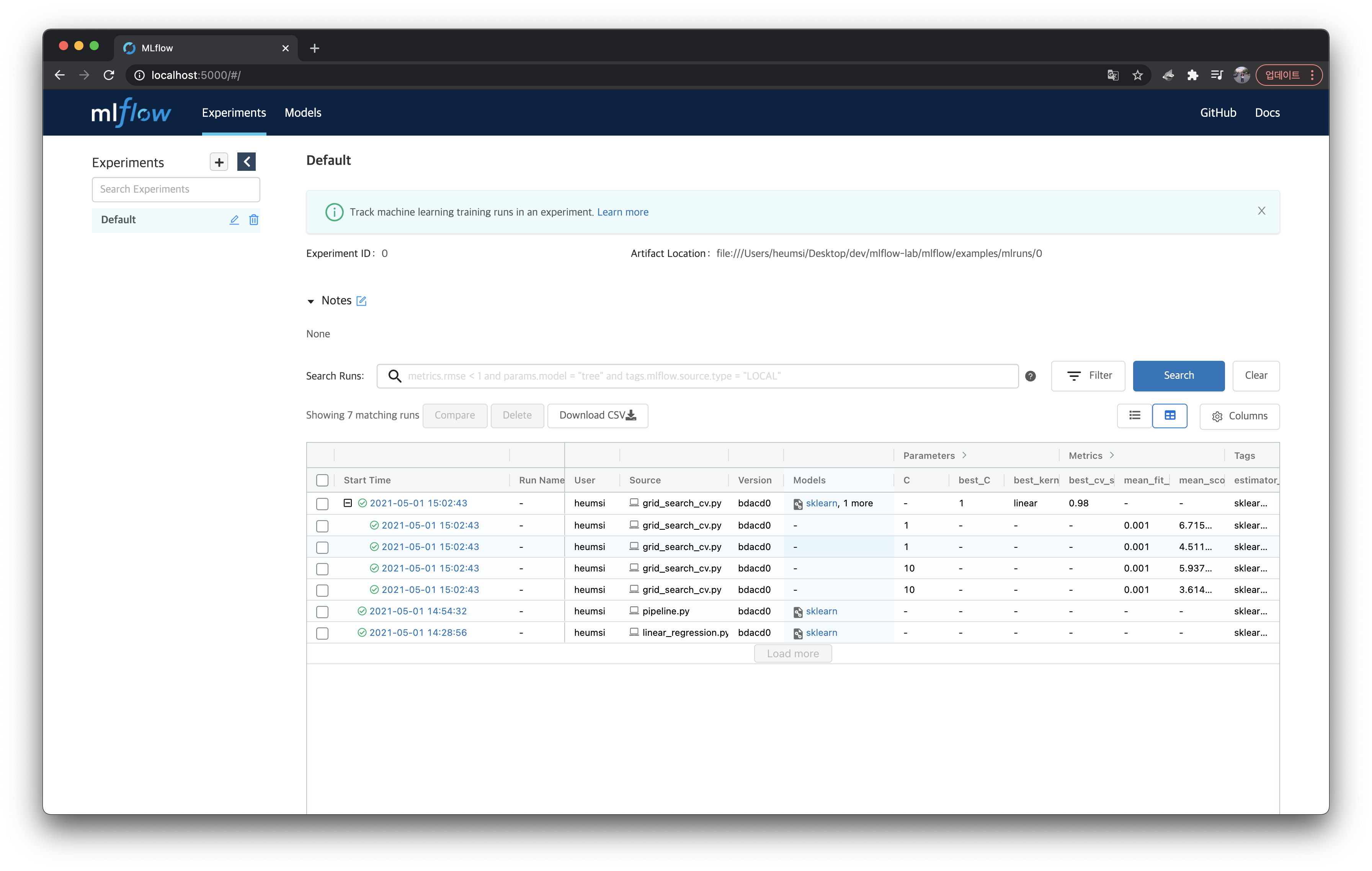
run 자체는 GridSearch 에 맞게 독립적으로 여러 개로 생성하되, run 간에 Parent, Child 관계를 가질 수 있는 것이다.parent_run_id 로 mlruns 디렉토리를 검색해보면, 이러한 관계가 어떻게 구성될 수 있는지 알 수 있다.
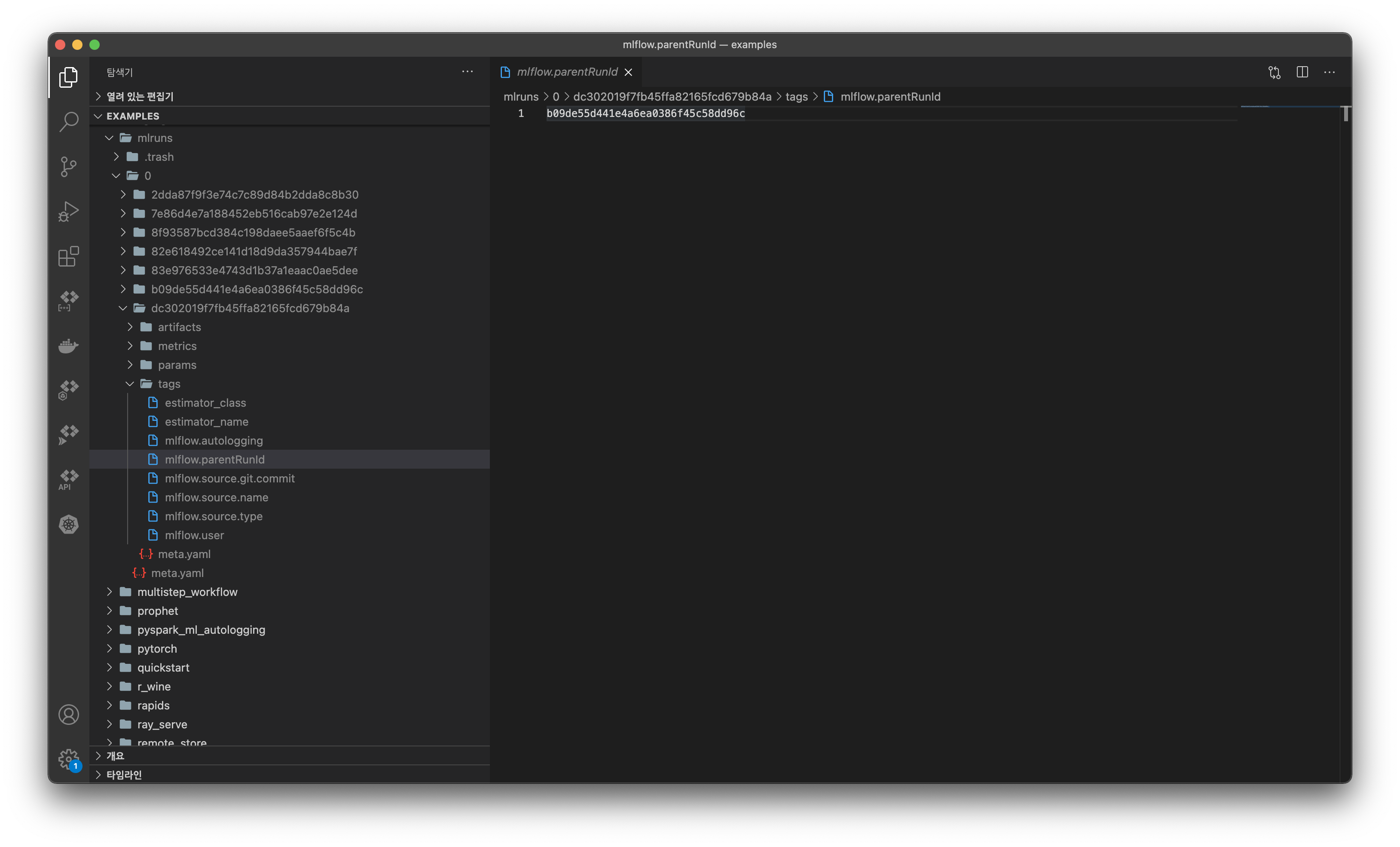
mlruns 에서 child run 의 디렉토리 구조를 살펴보면 tags/mlflow.parentRunId 가 있는 것을 볼 수 있다.
그리고 이 파일에 위 사진처럼 부모 run_id 가 기록되어 있다. (b09de55d441e4a6ea0386f45c58dd96c 는 dc302019f7fb45ffa82165fcd679b84a 의 parent run 이다.)
그리고 child run 은 artifact 과 관련하여 어떤 것도 기록하지 않고, metrics, params, tags 만 기록한다. artifacts 는 최종적으로 최적화된 모델을 사용하는 parent run 에서만 기록한다.
정리
mlflow.sklearn.autolog()기능으로 로깅 함수를 쓰지 않아도 자동 로깅을 사용할 수 있다.autolog()는 머신러닝 프레임워크별로 지원한다. 이에 대한 내용은 여기에서 확인하자.artifacts,params,metrics,tags등을 모두 기록한다.
GridSearch를 쓰는 경우 여러 개의run들을 만들어 실행하고 기록한다.run은parent run과child run으로 구성된다.child run은GridSearch에 사용되는 파라미터 별로 실행한다.parent run은child run중 가장 최적화된 파라미터를 가지고 실행한다.parent run만artifacts를 기록한다.- 웹서버에서도
parent-child구조를 확인할 수 있다.
이전 글에서 모델러가 로깅을 위해 mlflow 를 알고 써야하는 의존성에 대해서 걱정했었는데, 자동 로깅 기능을 사용하면 이러한 걱정이 좀 많이 내려가지 않을까 싶다.
'더 나은 엔지니어가 되기 위해 > 라이브러리 리뷰' 카테고리의 다른 글
| MLflow - Tracking Server (1) | 2021.05.05 |
|---|---|
| MLflow - Experiments & Runs (0) | 2021.05.02 |
| MLflow - Quick Review (0) | 2021.04.24 |
| BentoML - Quick Review (0) | 2021.04.19 |
| GCP - cloud build 이용하여 ci/cd 구축하기 (0) | 2020.08.09 |


